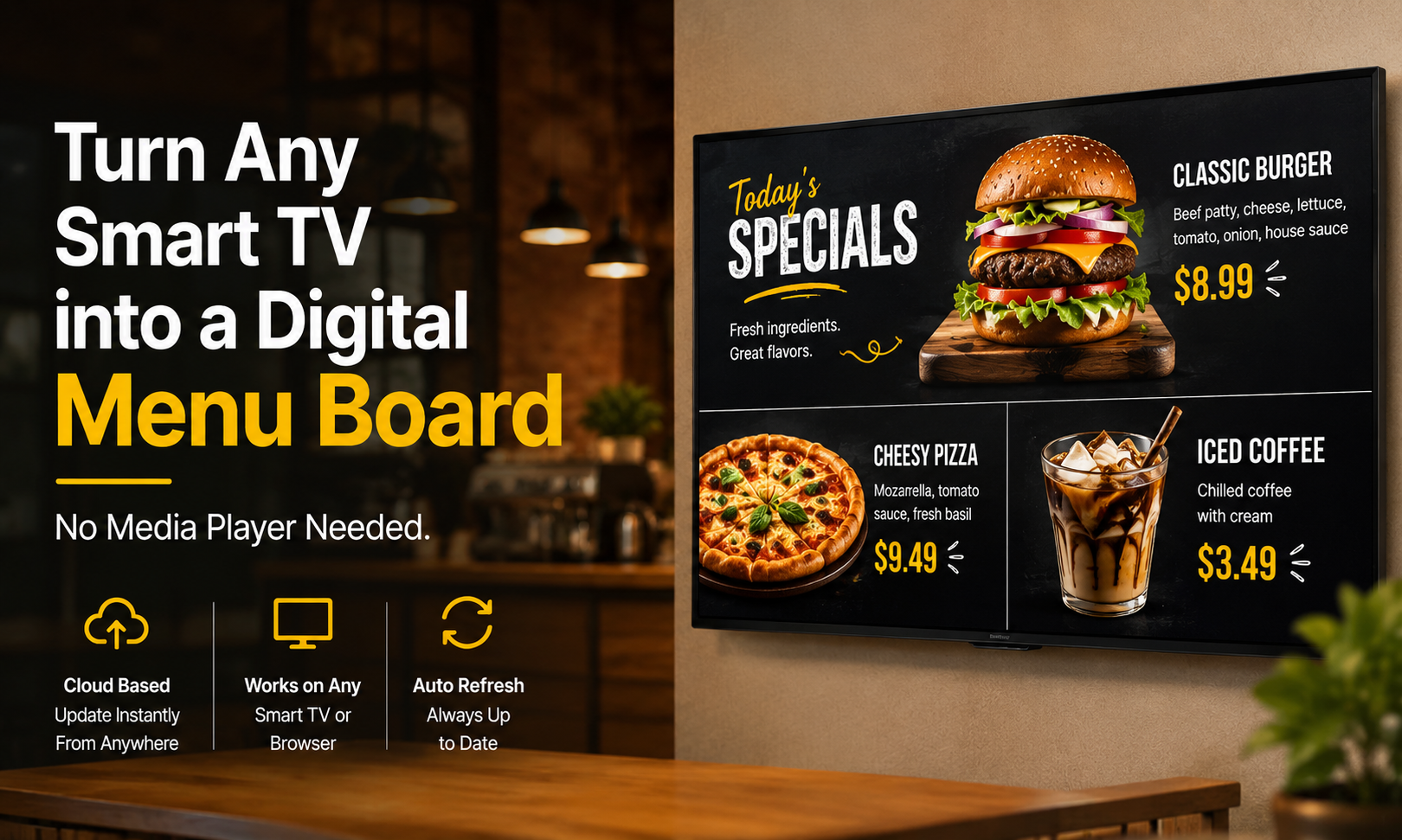
GUIDE · 2026
How to Turn Any Smart TV into a Digital Menu Board (No Media Player Needed)
By DisplayNex · 9 min read · Updated August 2026
Walk into most cafés and you'll spot the same setup: a TV on the wall running a slideshow off a laptop wedged behind the counter, or a printed menu curling at the edges. Both are quietly costing you sales — and both are unnecessary.
The screen on your wall is almost certainly a Smart TV, a Fire Stick, or an Android TV box. That means it already has a web browser built in. And a web browser is all you need to run a professional digital menu board. No dedicated media player, no HDMI dongle, no separate computer.
This guide walks through exactly how it works, what you'll need, and how to have your first board live in about ten minutes.
Why You Don't Need a Media Player Anymore
Traditional digital signage was sold as a hardware business. Vendors shipped a proprietary media player — a small box that plugged into your TV — and locked your content to it. Each screen meant another box, another power supply, and another point of failure.
Modern cloud digital signage skips all of that. Your content lives online. Your TV opens a single secure web address, and that page displays your menu, refreshes on a schedule, and updates the moment you change anything from your dashboard. The “player” is just the browser your TV already has.
The short version: if your screen can open a web page, it can be a digital menu board. That covers virtually every Smart TV sold since 2018, plus Fire Stick, Android TV, and any device running Chrome.
What You'll Need
- A screen with a browser — a Smart TV, Amazon Fire Stick, Android TV box, or a monitor connected to any Chrome-capable device.
- Wi-Fi or ethernet — the screen needs to stay connected to pull updates.
- Your menu content — images of your menu, specials, or promotions. Photos, exported designs, or Canva graphics all work.
- A cloud signage account — this is where you upload content and get your display URL.
That's the entire hardware list. If the TV is already on the wall, you're most of the way there.
Turn Your TV into a Menu Board in 6 Steps
-
1. Create Your Account
Sign up for a cloud signage platform and start a free trial — DisplayNex gives you 14 days with no credit card. Pick landscape for a wall-mounted TV or portrait for a vertical screen.
-
2. Create a Channel
A channel is one screen's playlist. Name it something you'll recognise — “Front Counter Menu” or “Window Specials” — and choose your orientation.
-
3. Upload Your Content
Drag and drop your menu images or promo graphics into the channel. Reorder them by dragging. No design software or technical skills required.
-
4. Set the Refresh Schedule
Choose how often the screen checks for updates — every 5, 15, or 60 minutes. When you change a price or swap a special, the screen picks it up automatically.
-
5. Open the Secure URL on Your TV
Every channel gets its own unique display URL and a QR code. On your Smart TV or Fire Stick, open the browser, type in the URL (or scan the QR code), and your board appears full-screen.
-
6. Leave It Running
That's it. The screen stays on the page and refreshes on its own. From now on you manage everything from your phone or laptop — the TV never needs to be touched again.
Smart TV vs Fire Stick vs Android TV: Which Should You Use?
All three work. The right choice usually comes down to what you already own and how much control you want over the display.
| Device | Best For | Things to Know |
|---|---|---|
| Smart TV (built-in browser) | The simplest setup — nothing to plug in | Browser quality varies by brand; some older sets are sluggish |
| Amazon Fire Stick | Older or “dumb” TVs with a spare HDMI port | Cheap, reliable, easy to relaunch the browser on boot |
| Android TV Box | Multiple screens you want to standardise | Most flexible; supports auto-launch and kiosk-style setups |
If you're buying new hardware for a single screen, a Fire Stick is the cheapest dependable option. If you're rolling out several screens across a venue, an Android TV box gives you the most consistent control.
For a deeper breakdown, see our guide comparing signage devices.
What You Can Actually Put on the Screen
A menu board doesn't have to be just a menu. Businesses use the same setup for:
- Daily specials and limited-time offers — update in seconds when the kitchen changes the special.
- Promotions and upsells — combo deals, loyalty prompts, or “ask about our...”.
- Announcements — opening hours, events, or “now hiring”.
- Queue and wait-time info — useful for clinics, salons, and takeaways.
Because everything is driven from one dashboard, a business with several screens can push a change to all of them at once. See how different sectors use it on our industries page.
How Much Does This Cost?
Far less than the old hardware model. Because you're using the TV you already own, the only real cost is the software.
Plans start at $9.99/month for a single screen, with no setup fees and no long-term contract.
Compared to buying a media player per screen — often $200 or more each — the savings add up fast, especially across multiple displays.
Turn Your First Screen into a Menu Board Today
No media player. No credit card. Live in about ten minutes.
Frequently Asked Questions
Do I need a media player or special hardware?
No. Any Smart TV, Fire Stick, or Android TV with a browser can open the display URL and run your board. That's the whole point of a cloud platform.
Will the screen keep updating on its own?
Yes. You set a refresh interval — every 5, 15, or 60 minutes — and the screen pulls your latest content automatically. Change a price on your phone and it appears on the TV without anyone touching it.
Can I run more than one screen?
Yes. Each screen gets its own channel and URL, and you manage all of them from a single dashboard. Plans scale from one screen upward.
What happens if the Wi-Fi drops?
The screen keeps showing the last content it loaded and resumes updating once the connection returns, so your board doesn't go blank.
Do I need design skills?
No. If you can upload a photo and drag items into order, you can build a board. Menu images from Canva, a designer, or even a phone photo all work.